A Stronger, More Secure FOREVER Experience
By FOREVER • October 1, 2026
We know how much your account and memories mean to you, and we never stop looking for better ways to protect them. Earlier today, we rolled out stronger security measures for your FOREVER account and desktop software programs.
A New Sign-In Experience
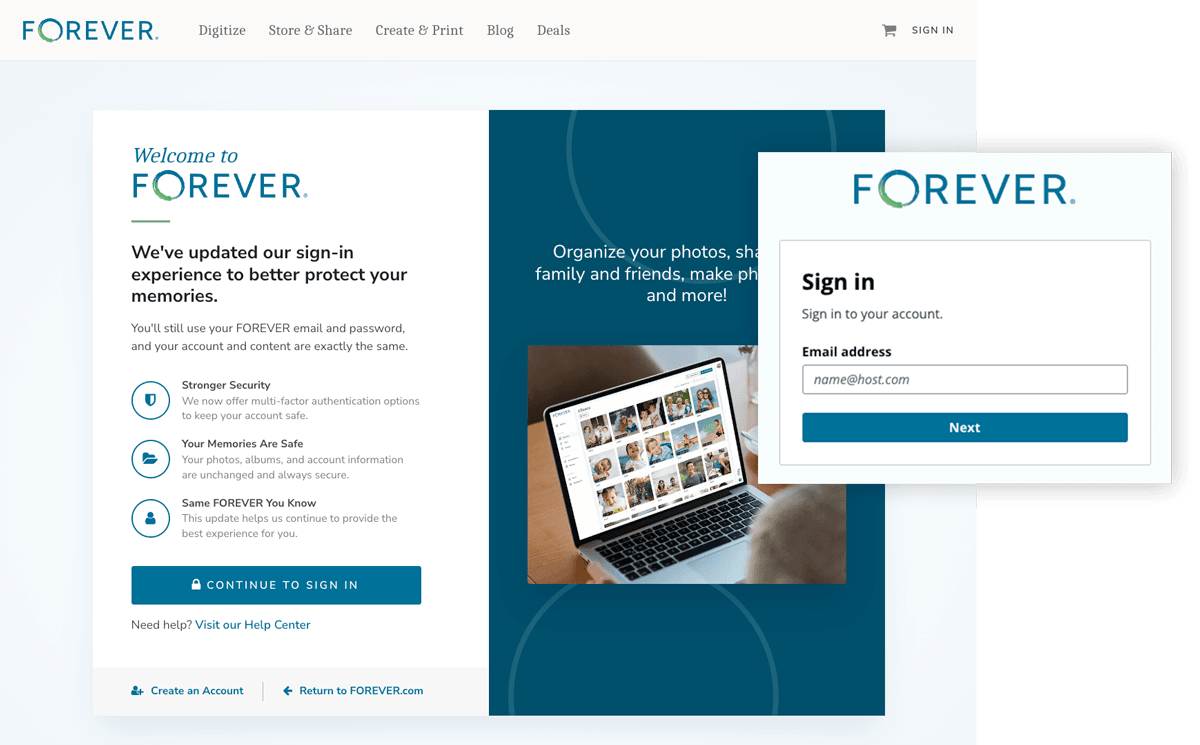
You'll notice an updated sign-in experience across FOREVER.com and our mobile and desktop apps.
When signing in through FOREVER.com, you'll first be taken to a welcome page where you can continue to sign in, visit the Help Center, create an account, or return to FOREVER.com. Simply click Continue to Sign In to access the sign-in page.
The sign-in screens in our mobile and desktop apps will also be updated as part of this change. Although they may look different, you'll continue signing in with the same email address and password you use today.
As part of these security enhancements, you may be asked to sign in again on your mobile app, desktop software, or web browser. After signing in, you can continue using your account as usual.
Stronger Password Protection
Your current password will continue to work after this update.
If you ever need to reset your password using Forgot Password, you'll be asked to create a new password that meets our updated security requirements. While existing passwords are not required to be changed, we strongly encourage everyone to use a strong, unique password to help protect their account and memories from unauthorized access.
Multi-Factor Authentication (MFA)
We're also introducing Multi-Factor Authentication (MFA), an optional security feature that provides additional protection for your FOREVER account.
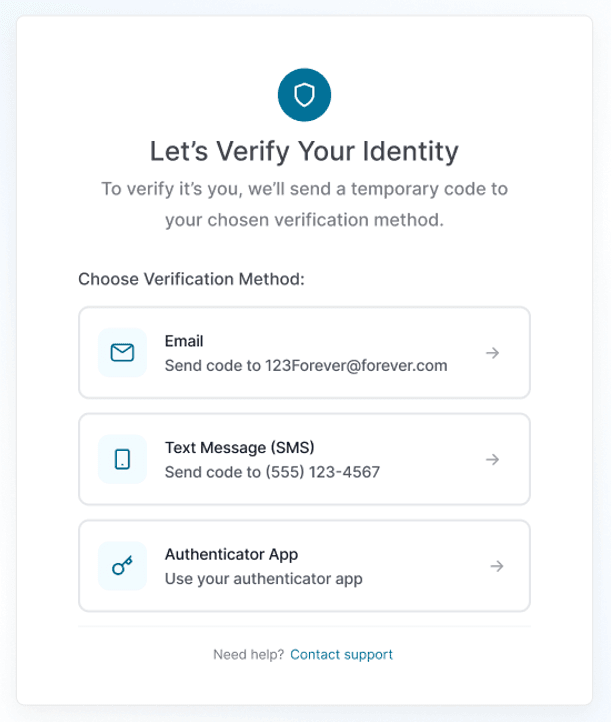
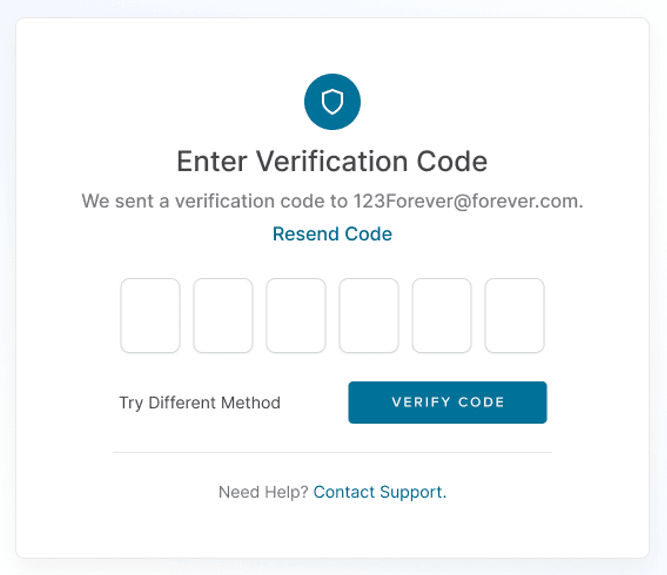
When enabled, MFA requires a one-time verification code in addition to your password when signing in. You can choose one or more ways to verify your identity:
- A code sent by text message
- A code sent by email
- A code generated by an authenticator app
Popular authenticator apps include Google Authenticator, Microsoft Authenticator, and Authy.
You can manage your account security settings at any time by visiting Account Settings, where you can update your email address, change your password, and enable or manage MFA options.
This simple additional step helps prevent unauthorized access and better protects your account, personal information, and the memories you've stored with FOREVER.
While MFA is optional, we strongly recommend enabling it to take advantage of the strongest available protection for your account.
These updates are designed to enhance account security while keeping access to your memories simple and convenient.
Important for FOREVER App Users
- 📱 Apple (iOS) users: Please update the FOREVER app to the latest version before signing in. The update is available now. Do not uninstall your app or you will lose the data that tracks what you upload.
- 📱 Android users: An updated version of the FOREVER app has been submitted and is awaiting approval. Your phone will automatically update as soon as the approval process is complete. If you'd like to check yourself, visit the Google Play Store and look for version 6.3.0.
Important: Artisan 6, Historian 6 & Valet Users
In order to access and use your software, you’ll need to download and install the latest version of the program.
Here’s what to do:
- Close the program.
- For Artisan 6 and Historian 6 users - Download the latest version from https://www.forever.com/downloads.
- For Valet users - Download the latest version from https://www.forever.com/settings/downloads.
- Run the installer and proceed through the installation screens as you normally would. A restart of your computer may be necessary.
- Open your software once the installation is complete.
- Sign in using your FOREVER account credentials to begin the new sign-in process.
Once you’re running the latest version, you’ll be able to log in and will see the new sign-in messages within the software.
Thank you for helping us keep FOREVER secure for everyone. 💙