PixieVerse TRAINING WEEKEND BREAKOUTS AND SOCIAL SEGMENTS
This post includes a link to the Idea Book, the training notes, and all training sessions and training session recordings. You can see and register for the training sessions by clicking on the Interactive Agenda box at the end of this post, clicking on the Related Posts in this post, or clicking on the spaceships in the printable Interactive Agenda with Zoom links.
PixieVerse Idea Book
CLICK HERE to download a copy of the Idea Book. This is for personal use only and links and/or content should not be shared under any circumstances. This digital copy is for ticket holders only and does not contain QR Codes or additional content.
CLICK HERE to purchase a collectible soft cover book of the Idea Book. The print version of the Idea Book includes QR Codes for each article that leads to bonus content that can be training videos, tips, or digital art. This book will only be available for a limited time.
Printable Agenda with Zoom Links
CLICK HERE or on the image below to download a copy of the printable agenda. There are two versions of the Agenda: one for the United States and Canada and one for Australia and New Zealand. The first column has clickable links to the registration page for each breakout. The links in column 1 will only be active through May 15, 2023. Click on the breakout description to visit the breakout post on the PixieVerse site.

Training Notes
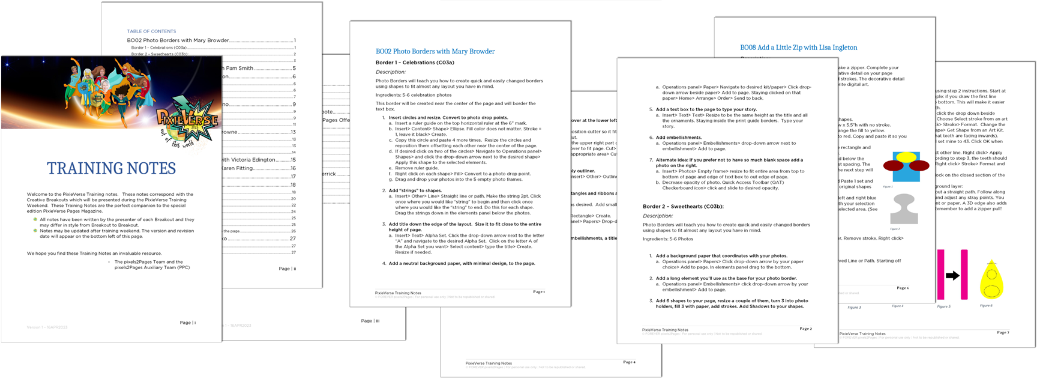
We provide you with training notes so that you can sit back and enjoy the training. All Breakouts do not have training notes, but all of the Creative Breakouts do. CLICK HERE or the image below to download your training notes.
Gallery

Share your creation on Facebook.
Share any pages you create using this technique to the pixels2Pages Facebook Community using the following hashtag:
#p2PPixieVerseVirtualParty
View Gallery Page credits and/or share your pages in a Collaborative Album.
Want to share your page in our Gallery? Maybe you want to know which kits and fonts are used on a page. Visit our Collaborative Album by clicking the button below.
Tip: Upload and Properly Credit Your Pages
Tip: Adding Photos to the Collaborative Album